


Send To option is very useful option to send an item instantly from one location to another like a removable drive, Bluetooth or just a folder. It would have been great if we could have customized this option by ourselves and also added more to it.

With the help of a tool called Send To Toys, we can do much more functions than just send. Send To Toys is an enhancement of the Send To system menu.
Send To Toys Control Panel Applet allows you to manage the Send To system menu content, and configure the various Send To Toys settings. Whether it is Quick Launch, Recycle Bin or some other location, just use this tool.
The tool is a freeware and can also be used to add customized options to the context menu send to option.
Download Send To Toys
At home, we usually have a single computer or laptop which is shared by all the family members so it becomes difficult to save our personal data. Also in offices, our colleagues’ evil eyes are always searching for important data in our computer. So, to keep our data safe there are two options either hiding our folder using hide icons application or using a freeware called Secure Folder which will help us password secure our folders. Secure Folder is a tiny application for commercial as well as personal use which will lock/unlock folders and drive with password. It is supported by windows 7, vista and xp. It is downloaded as an exe file so there is no need of installation. When you will run the exe file it will ask you to enter the password to login. You have to remember this password because you can later unlock your folders using this password only.  After login, you can see the main window of the application which is user-friendly with few options so that you can make your folder secure in just few clicks.
  For making your folder safe, you just have to click the option ‘Add’ and add your folder and the folder is locked. It doesn’t provide the option of drag & drop.
  Now, when you want to open that folder, you have to right-click and click ‘[Lock/unlock] with secure folder’. After that, it will ask you for the password which you have entered at the time of login to unlock. NOTE: Now, the folder will get unlocked so you have to again lock it to make it safe by going to the application.
  You can also unlock the folder in the main window by marking the desired folder and using the option ‘Unlock’.
  It also provide you the option of changing the password by going in the option ‘File’ and then ‘Change Password’ which will show you the this window where you can set the new password.
  So, it is a smart utility for hiding our personal information from the people whom we don’t want to see it.
Source:Troublefixers
Download Secure Folder 1.0.0.0
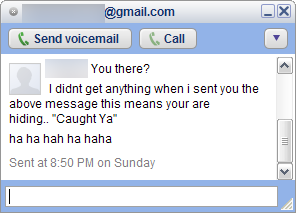
We always have many ways to find out if user is invisible or offline on yahoo. But finding if the user is offline on Google Talk is tough before this.
Follow the steps and you will end up finding the actual status of the user.
- Open The Chat window of the user, you want to check the status.
- Click on option and click on “Go Off the Record”

- Now message user
- If you get something in red that the user is offline and can’t receive messages that means the user is offline

- If you didn’t get any message in red that means user is online in invisible mode..:)
There are time when various running process gets hanged and stop responding, in such a case it required to kill those process. Process Manager For Windows allows you to kill, set priority, hide running process, hide all running process, kill a specific process or kill all process etc. Using this program is quite simple to kill process or hide them.

It allows you to use keyboard shortcuts to kill any process, hide process and do other things.

After installing and running this program it will show a system tray icon, which allows you to hide or unhide all the running process or kill them as shown in the image below.

You can even hide the tray icon of this program as shown in the image above or quit this program with a keyboard shortcut, In order to kill a specific application program right click the program and go to kill >> select the program which you want to kill.
Download Process Manager
Windows’ default text editor that is Notepad is very handy for writing text but it is so simple and plain that it lacks many features that could have made it much better.

One of the features that can be added into a notepad is that of tabs. A tabbed notepad would make our work easier and efficient, isn’t it? What if the tabbed notepad also supports the text formatting like the bullets, bold text and the Italics? The resulting product would be a powerful notepad called Notepad X.
Notepad X is a powerful, tabbed text editor that can successfully replace Windows’ Notepad. The application is quite small and is free to use. The tool is very simple to use and can be downloaded easily from the link provided.
Download Notepad X
To get the info about some file or application what did you do till now? Right click and see the properties but now with Roadkil’s Window Message you can see the info about a window with just hovering the mouse over it.

Roadkil’s Window Message is a tool that displays information about the window the mouse pointer is currently over. It shows the following information when you hover the mouse over the window: handle, size and the owner thread information.
The information may not be useful to all the people but it is useful to the people writing windows applications or wanting to create an interface to another application such as macros/scripts. The tool is free and requires no installation.
Download Roadkil’s Window Message
The default setting in Windows XP is to have XP scan for updates automatically.
To control or disable automatic updating, open the System icon in Control Panel (or right-click My Computer and select Properties), and choose the Automatic Updates tab.

You can also check your window update manually open Internet Explorer and select Windows Update from the Tools menu ,
We have many ways to protect drives from viruses including a tool which removes the viruses from infected USB drives and some other tools like Smart Virus Remover, USB Protect and you can also read our guide on how to avoid autorun virus infection and in worst case, how to Copy Data From Virus Infected Pen Drive

Today we came across another useful tool which can add life time protection for any USB Drive or other Removable USB Devices. This application is called USB Defender – It allows you to securely protect your flash drive from different type of autorun viruses which infect you drives and then you computers when your USB Drives are connected to them.
USB Defender was developed to be extremely easy in use. You can see just two buttons on it: "Protect" and "Unprotect". First button you are using to vaccinate your drive, second – to remove protection.
After selecting any drive, program automatically detects, if there is any protection active and only one button will be available for you.
Lets see what this tool does in order to vaccinate your drive against autorun viruses, it actually creates a system hidden folder called AUTORUN.INF as shown in the screen shot taken of the USB drives contents
After this autorun.inf folder that has been created no autorun.inf viruses can infect your pen drive which means even if you connect your USB drive to virus infected computer it wont infect your USB removable drive.
Conclusion – This program does allow you to add protection right now, as the time passes hackers will find a new way to make these viruses work, till then this could be real rescue.
NOTE: If you format your pen drive, this protection will be lost and you need to protect the pen drive again using this tool if you want this protection.
Download USB Defender
Alt+tab is the most quickest and easiest way to switch across opened windows and programs but sometimes the size of the small thumbnail in alt+tab switching makes it difficult identify the what is actually going on a particular opened program window.
Alt+Tab Tuner is a free program which helps you increase the size of the thumbnail, and tweak lot more other settings of the thumbnail images of the programs showing while alt+tab switch.

As shown in the screenshot of this application, you can change the margins around thumbnails, increase columns in thumbs grid shown, increase the spacing in between thumbnails shown, increase the icon size and shit its location, increase the thumbnail and increase the fading and transparency of alt+tab switch. You can also revert to the old style alt+tab as there in windows xp.
You can get get the layout of alt+tab switching like the one shown below just with minor tweaking.

How To Use ?
Using and testing this program is quite simple just, change the options, click apply and then see the changes in alt+tab switching.
Download Alt+Tab Tuner
We all love pictures and often take a lot of pictures with our cameras, So there are times when there are some pictures lying in a folder and the view type is such that you are not getting the idea how does this image actually look, in such a case you can use a free utility called Menu Viewer which will show you a thumbnail image of the image file, as well as its actual dimensions, when you right click in that image file name in windows explorer.

As shown in the screenshot above it will show you a small thumbnail preview of the image, and also show the actual dimensions of the image. If you click this preview in the right click context menu it will open that image in your image viewer. This application is really useful in getting the preview of any image without opening it.
This shell extension uses FreeImage, and currently supports: BMP,DDS,Dr. Halo,GIF,HDR,ICO,IFF,JBIG,JNG,
Download Menu Viewer
A Computer might seem to be a very simple and sorted machine to you but have you ever thought of what happens once you install a new application or software and run it. What processes run in the background ? or What are the applications that start automatically at Windows Startup which are in connection with those new softwares?
Hardly a handful of people amongst you would give it a thought and the rest will forget it as soon as they start working on their newly installed applications. But all of you should be aware of what is going on the inside of your computer and should keep an eye on the applications or services that run.
The applications or services that run in the background, slow down your computers and should be avoided at windows startup since they certainly affect the performance of the device. Now the question arises how would someone come to know about the applications and services which run at windows startup and avoid them or keep an eye on these things without much effort?
To answer this a 876KB tool named Security Autorun is present on the internet and is available for free and the function of this software is to display the list of applications that are loaded automatically at windows startup and even lets you stop these unwanted applications.

Each application running is displayed with following information:-
- Startup Type:Startup Registry,Startup Common/User,Startup Services,Drivers List
- Product Name, File Version, Company Name, Location in the Registry or file system, Command Line String etc
- Another unique feature is that the software detects any adware or spyware installed on your desktop and displays its information.
Compatibility
The software is compatible with :-- Windows 9X
- Windows NT
- Windows ME
- Windows 2000
- Windows XP
- Windows Vista
- Windows 7
We often come across scenarios, where we want to open multiple links at once, or maybe you just want to copy the title and URL of each link in one shot. This is generally encountered while searching for something; I generally open every link in new tab. Here is a Firefox add-on which can help you out of this trouble, Snap Links Plus is a Firefox add-on which allows you to open multiple links in one go.
 Open multiple links in one go
 Snap Links Plus open multiple links, titles or URLs
I liked Snap Link Plus a lot, and I am sure who read loads of webpages will definitely like this add-on, however if you have a slow net connection, it might not be advisable because it may cause very slow loading of webpages.
Install Snap Links Plus
Technology is evolving with every second passing by and so are the computers. With the fastest computers in the market every buyer thinks of buying spacious Hard drives as well, which could store data upto 1 TB(1024 GB) or even more. Storing more data in your hard drive is not a problem but managing it is certainly a tedious work.
If some files are lying in one partition, and one wishes to transfer it to another then he/she certainly will follow the traditional method of opening several windows at once, of all those files which need to be transferred and the partition to which they are to be transferred.
Clicking on each window separately and then copying or pasting the files is the next problem you face while transferring them, which eventually takes quite a while to complete.Since no one can work like this for rest of their lives a new software occupying 2.2 MB of space has been developed, named NexusFile – Windows File Manager.

The software is amazing in terms of usefulness since it allows you to perform a lot of tasks from a Single window. Similar softwares are also available in the market namely EFcommander etc which resemble a lot in terms of user interface but the number of features are less.
Key Features of NexusFile
- Dual-Pane Interface file manager
- Color coded file management
- Easy copying or moving files between folder
- Quick navigation to favorite folders
- Changing file and folder attributes
- Advanced renaming operations
- 3 customizable color schemes – Black, Classic and Grey with transparency support and custom view styles
- FTP transfers along with folder comparison and synchronization
- File splitting and joining
- Disk Cleanup
- File shredding and much more
Compatibility
The software is capable of supporting Windows 7, Windows Vista, XP and 2003 and it does not contain any adware or spyware.Download NexusFile
There can be a requirement when a particular program which you want to install or run on your computer requires a particular version of framework and you may or may not have that framework version installed. In such case you would like to check that whether that framework is already installed so that you can save your time and internet bandwidth as both would get wasted if you already have that software installed on your machine.

There are many small programs which finds out, one of them we had reviewed earlier called Detect DotNet, We have also written a tutorial to find out whether an application which requires some .net version pre installed will run on your computer.
Related – Download .Net Framework 2.0, 3.0, 3.5 ,3.5 SP1 Full Setup Installer
Some other quick and easy to use applications which lets you find out the version of .net frameworks already installed are discussed below.
.Net Framework Version Checker – It shows details of all the versions and service packs of .NET frameworks installed on your machine. Give .Net Framework Version Checker a try to see just how useful it can be for you.
Download .Net Framework Version Checker
Framework Detector – It can easily detect the installed versions of .NET on your machine, it also links directly to the location from where you can download the framework. Also links directly to where the frameworks can be found to download and installed, Now .NET 4.0 is also supported.
Download Framework Detector
Laptops come handy at various situations and in places where the desktops cannot be used but apart from using these it becomes our responsibility to ensure that this product stays with us for a longer time.

•Shut It Down
A laptop does require rest and therefore it is necessary to shut down the laptop when not in use. Shutting down when not in use also prevents the laptop from overheating.
•Adjusting Power Settings
Adjusting your power options will help your laptop from heating up when not in use even if for short periods of time. Keeping the laptops on hibernation or standby is a good option.
•Before You Pack It Up
Make sure that you before you put your laptop into its carrying bag that it is shut down. A notebook that has been left on can melt. When enclosed in a notebook bag there is no air circulation and the results can be worse than melting.
•Avoid Lap Burn
Longer use of the device can cause burns to your lap, thus to prevent this you can use the laptop desk or cooler. On the other hand, some laptops also have more vents for the heat to escape.
•Soft Spots
Always make a habit to not to use a soft material like a soft cloth as a buffer between the laptop and your lap. Try to keep it up on a hard surface that allows proper ventilation.
•Unplug Accessories
Whenever your laptop will not be in use, even for short periods of time remember to unplug any accessories. Not only do they use power but they could cause the laptop to overheat.
These are the safe practices that will ensure the maximum life of your important product. So how you liked this post?
TuneUp Utilities is one of the best system optimization suite for Windows. It provides various options to tweak your system. It also provides options to change Windows theme, boot screen, login screen and icons.
Here is a step-by-step procedure to change or create new boot screen in Windows XP and Vista using TuneUp Utilities:
1. First download and install TuneUp Utilities from the following link:
Download TuneUp Utilities
You can either purchase the full version or download 30 days trial version. After installation, run it from desktop or from Programs menu or by right-clicking on My computer icon and select "TuneUp Utilities".
2. Now click on Customize Windows -> TuneUp Styler

3. It'll open a new window. Click on "Boot Screen" link in left-side pane:

4. Now click on "Add -> Load Boot Screen From File..." option:

5. Select your boot screen file and click on "Install Boot Screen" button:

6. You can also create your own boot screens. To create new boot screen, click on "New Screen" button. It'll open a new window. Now click on "Search Local Drives" link and select the image.

You can also set the image alignment, borders, background color and progress bar position.
7. Once you finish, click on "Save boot screen" link and provide a name to your boot screen.

8. You can even see the preview of the boot screen by clicking on "Show large preview" link or by clicking on the image in Preview pane:

9. That's it, your new boot screen is ready. You can apply it by clicking on "Install Boot Screen" button.
There are some windows and dialog boxes in windows which cannot be resized as they have a fixed, they cannot be moved or resized by moving the mouse cursor on the corner of the screen. These fixed windows does not have a minimize or maximise button normally, they only have a close button.
But still you can resize these windows which normally cannot be resized by using a free program called ResizeEnable which enables the function in windows to resize any window, there is not options you need to set, just run the executable and then move your mouse cursor to those windows corner which cannot be resized, now you will notice you can resize them. 
Without ResizeEnable [ Original Window Size ]

With Resize Enable [ Stretched Window Size ]

So, it is simple application which lets you turn usually non-resizable windows into resizable windows. Most windows will respond correctly, but some may not!
[Thanks to Technixupdate]
Customization is one thing without which no daily computer operator can survive since one cannot keep looking at the same interface and backgrounds again and again. People try to find as many softwares as they can to simply give their personal computers a little interface makeover and such modifications range from changing the icons or background wallpapers or the screensavers used.
Moreover some users even try their hands on changing the Logon Screen Background which certainly is a bit intricate process and sometimes end up crashing their PC’s or corrupt some files associated with windows. Isn’t there any software which can change your logon screen background according to your wish at a single click? Well to surprise all you readers, a new software named Logon Changer has been developed which lets you change your logon screen background very easily.

This software has a very simple & easily understandable interface with which even a new user can play around and change his/her backgrounds without getting into any kind of trouble regarding the operating system. And surprisingly the utility hardly occupies any space with the 247KB of size it possesses.
Unique Features of Logon Changer
Although Microsoft imposes an image size restriction of 247KB but no one has to worry since the software itself resizes the background chosen accordingly to fit on the background with the highest quality possible. Another important feature is that all the backgrounds which are used or were previously used are made backup of.Procedure To Change Logon Screen Background
- Download the software and open the executable named TweaksLogon and you will come across a very simple interface as seen above. From here click on the Change Logon Screen button which takes you to the archive of the backgrounds, or you can locate your desired backgrounds as well.

- After selecting the background the program will ask you for compressing the background maintaining the highest quality if, the size exceeds 247 KB where one needs to click yes in order to proceed.

- As soon as you click yes the background will be changed which can be be tested as well. The image below will gove you a clear view of how the new background will appear like.

- Now you just need to close the program and enjoy the new background. In order to revert back, one has to click on the button saying Revert to Default Screen as seen in the above image and the screen will be brought back to the original one.
Download Logon Changer
This is a cool trick which I found accidentally, You can actually drag and drop any file or folder to Windows Command Prompt and you would get the File or Folder Path automatically in it.
 Drag Drop Command Windows
There are some program on your computer you would want them to start and run automatically in the background, without your input to start them. For this purpose people add programs to windows startup which can make your system slow with time as you keep adding more programs to startup, you can delay some programs at startup to solve this to some extent.
Another way to automatically start a program without slowing down your computer is to run these programs as windows service, as you want these applications or programs to run automatically or regularly without any effort from your own running them as service could be the best idea.
LaunchPad is a great freeware program which allows to run just about any program or script as a native Windows Service. It runs as a wrapper around your existing program, manages how and when your program will be run and ensures that your program is available 100% of the time.

This application supports both 32 bit and 64 bit of windows, in order to run this program you need to be an administrator or know the administrator password of the windows machine where you are running this tool, you will need to authenticate before running this software.

Here is how you can create a service, and then add application programs to that service. [ press ctrl+n to create a new service ]

Now in order to add programs to this service, click Managed Programs and locate the program associated to be running under this service.

In order to start the service you had created, right click on the service and click start service as shown in the snapshot below.

Some Benefits Of Running A Program As Windows
- No need to login to run your program.
- Your program automatically starts when the computer starts.
- Simple crash recovery by the Windows Service Control Manager
LaunchPad Key Features
- No need to be logged on as an administrator to modify services.
- Uses both Active Directory and Local Machine authentication.
- Able to run more than one program under a single LaunchPad instance.
- Runs as both a native 32 or 64 bit service, taking advantage of large memory configurations.
- Simple XML configuration, write once, deploy everywhere.

New Radio Toolbar


